
XRechnung Generator for Streamlined Processes
Treesoft XRechnung Creator
Anyone looking for an invoice generator or XRechnung generator today needs more than just a nice-looking input form. Since 2025, a simple PDF is no longer sufficient in the B2B environment when a structured e-invoice is required. Today, companies need more than just a simple invoice generator. They need an XRechnung generator that allows them to create invoices locally on their own PC (on-premises), save them as XRechnung or ZUGFeRD invoices, automatically validate them, file them in a traceable manner, and, if desired, send them automatically via the Treesoft E-Invoice Toolkit’s pipelines. That’s exactly what the Treesoft XRechnung Creator in the Treesoft E-Invoice Toolkit is designed for.

Invoice Generator or XRechnung Generator: What Businesses Need
An invoice generator often produces only a document or PDF. An XRechnung generator, on the other hand, generates a structured electronic invoice that the recipient can process automatically. For businesses, therefore, it’s not enough to have just a layout; they need a streamlined process that includes required fields, invoice numbers, validation, and archiving.
- XRechnung and ZUGFeRD Instead of Unstructured PDF Invoices
- Structured data instead of just visuals
- Automatic testing instead of troubleshooting just before shipment
- Traceable invoice numbers instead of isolated solutions
- Local installation (on-premises) instead of being forced to use the cloud
What Sets Treesoft XRechnung Creator Apart
The Treesoft XRechnung Creator is the module for manually creating new outgoing invoices. It builds on the Treesoft XRechnung Editor but adds exactly the features you need for creating new invoices on a daily basis.
- Manually create new XRechnungen and save them as ZUGFeRD invoices if necessary
- Simple address and item management for repeat customers and items
- Manage payment profiles for bank transfers or SEPA direct debits
- Customize invoice templates to meet your business needs
- Automatically suggest the next invoice number and work with number ranges
- Keep accurate records of invoice dates and billing periods
- Validate automatically when saving
- Save invoices as drafts or post them as final entries
- Document posted outgoing invoices in the outgoing invoice ledger in a way that allows for traceability
- View XRechnungen or ZUGFeRD invoices created in the Viewer for free
- Automated delivery via the Treesoft E-Invoice Toolkit's pipelines, upon request
- Fair token settlement only after the storage process has been confirmed
As an invoicing program, Creator is particularly well-suited for companies that still use Word, Excel, or LibreOffice today. As XRechnung software, it’s also ideal for teams whose ERP systems cannot generate structured e-invoices. This transforms a haphazard file storage system into a well-organized process for outgoing invoices.
On-premises instead of a browser-based tool
Anyone searching for a free invoice generator, free invoice creation program, or free invoice creation software often ends up with simple web tools. In practice, these are usually not sufficient for productive use in businesses. Treesoft XRechnung Creator is deliberately designed as a local, on-premises solution. Your customer and invoice data remain on your system, templates and file storage can be customized to fit your processes, and you work without being tied to the cloud.
- Local installation on your PC
- Sensitive billing information remains internal
- No dependence on a browser service
- Compatible with existing Office and ERP processes
As an e-invoice generator for professional use, Creator therefore goes far beyond a simple browser-based e-invoice creation tool. It is e-invoice creation software designed for businesses that want to maintain control over their own processes.
Who This Invoice-Generating Program Is Particularly Suited For
The Treesoft XRechnung Creator is particularly useful for:
- Companies and SMEs that must manually create new invoices as XRechnung or ZUGFeRD invoices
- Businesses that have been using Word, Excel, or LibreOffice
- Suppliers to public contracting authorities that require structured outgoing invoices
- Companies with ERP systems that offer no e-invoicing capabilities or only limited ones
- Organizations that want to work locally on their own computers (on-premises)
Try the Professional XRechnung Generator for free now
If you’re looking not just for any invoice generator, but for an XRechnung generator for professional use, the Treesoft XRechnung Creator is the right choice. You can create new invoices locally on your PC (on-premises), work with templates, master data, number ranges, and validation, and store your outgoing invoices in a traceable manner within the Toolkit. Download the Treesoft E-Invoice Toolkit now and set up your e-invoicing process in a clean, controllable, and practical way.
Price
Depending on the version you choose—FREE, BASIS, PLUS, or PRO—in combination with the token package you select, the cost of creating a project ranges from 0.56 EUR to 4.00 EUR—the choice is yours.
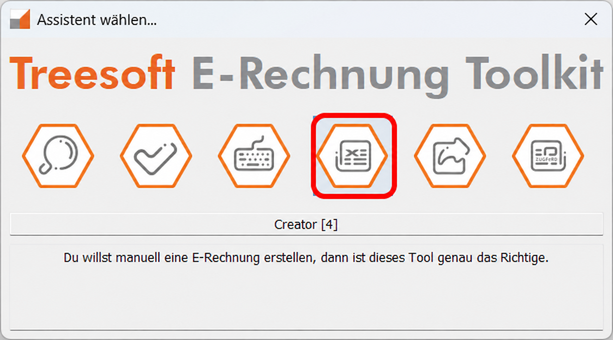
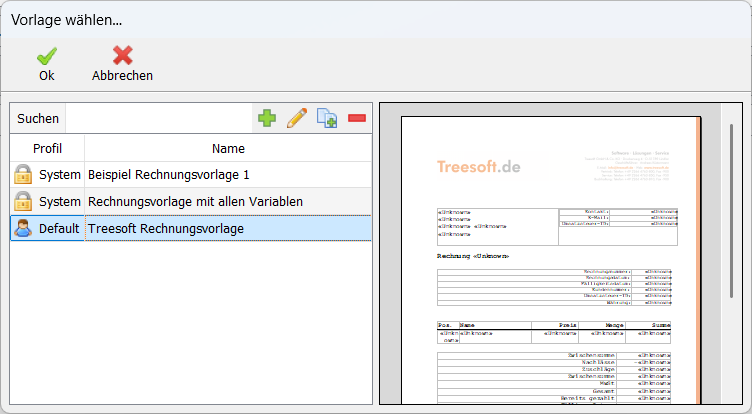
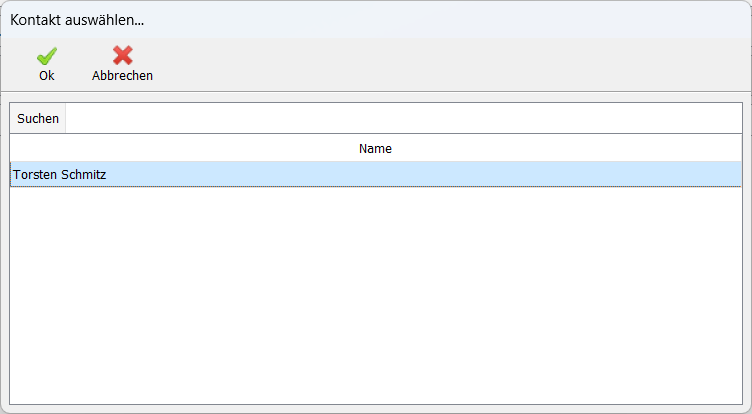
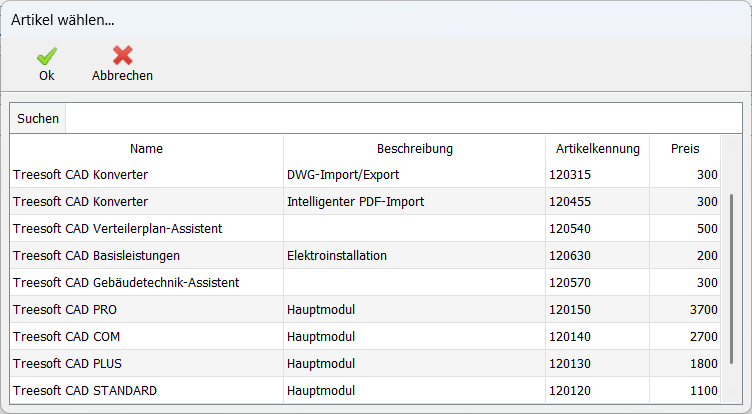
How to Create an XRechnung or ZUGFeRD Invoice




FAQ – Frequently Asked Questions About Treesoft XRechnung Creator
Additional Modules in the Treesoft E-Invoice Toolkit
Treesoft XRechnung Creator is a module in the Treesoft E-Invoice Toolkit. Depending on your needs, you can add additional modules to the workflow:
- XRechnung Viewer for opening, reading, and structured archiving
- XRechnung Validator for validating an XRechnung
- XRechnung Editor for editing and adding missing information
- PDF2XRechnung Converter for converting existing PDF invoices into e-invoices
- ZUGFeRD Creator for creating a ZUGFeRD invoice (XRechnung + PDF invoice)
This way, the solution grows with your needs—from verifying individual invoices to a complete e-invoicing workflow.
Flyers, price lists, and documentation
Documentation
Treesoft E-Invoice Toolkit User Guide
Order tokens from the online store
Downloading the e-Invoice Toolkit and setting up a token account does not entail any obligation on your part.
Questions about the Treesoft E-Invoice Toolkit?
We’re happy to help!
New customers: +49 2266 4763-830 · e-rechnung.sales@treesoft.de
Existing customers: +49 2266 4763-880 · e-rechnung.support@treesoft.de


