
Treesoft Office 7.0 – The Future Pays Off!
New CAD Technology + 100% Version Compatibility
Simplify and speed up your Treesoft Office: CAD · CRM · ERP workflow with the new CAD technology (the foundation for modern advancements) and rest assured with our 100% compatibility guarantee (read and edit old and new projects).
Read on to learn more about Treesoft CAD 7.0, or start your upgrade now …
The new Treesoft Office 7.0 is here! Experience the future – Treesoft Office 7.0 – 2

Treesoft CAD 7.0
Foreword
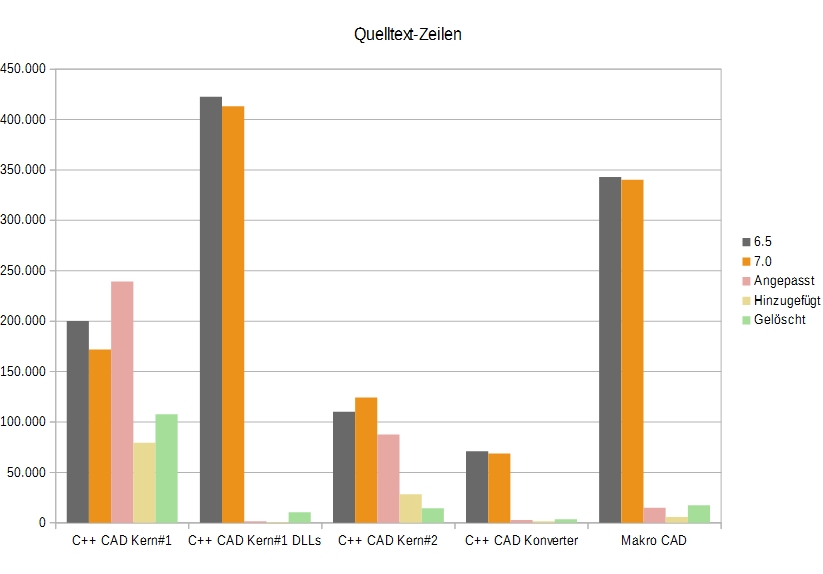
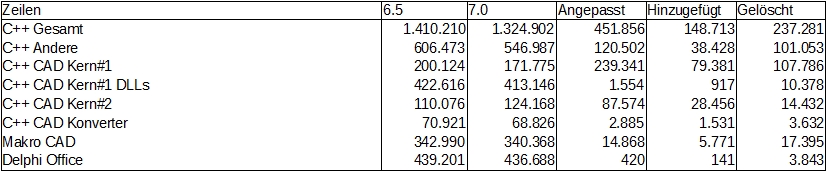
To get right to the point, Treesoft CAD 7.0 is the best CAD software in Treesoft’s entire history. For this version of the program, 467,144 lines of source code were modified, 154,625 lines were rewritten, and 258,519 lines were deleted.
Below, we’ll explain how we got here and why, despite this extremely extensive overhaul, we can still guarantee that we’ve not only maintained the quality standards we’ve achieved over the past 31 years but have even significantly improved them.
Treesoft CAD 7.0 can’t be described—you have to experience it!
Of course, we have also fully honored our 100% compatibility guarantee with Treesoft CAD 7.0. Drawings are automatically converted to the new format when opened. Internally, Treesoft CAD 7.0 now always performs calculations using the highest available floating-point arithmetic. To ensure compatibility, the screen display and saving of drawings still occur in the old format.
Fun and work—that’s awesome! That’s also why you should install the Treesoft Office 7.0 upgrade as soon as possible. Do you collaborate with other companies that use Treesoft CAD? That’s possible, too—version 7.0 is fully compatible, meaning the schematics you create can be read directly by all Treesoft CAD versions 4.1 and higher. It doesn’t get any better than that.
Refresh the CAD core
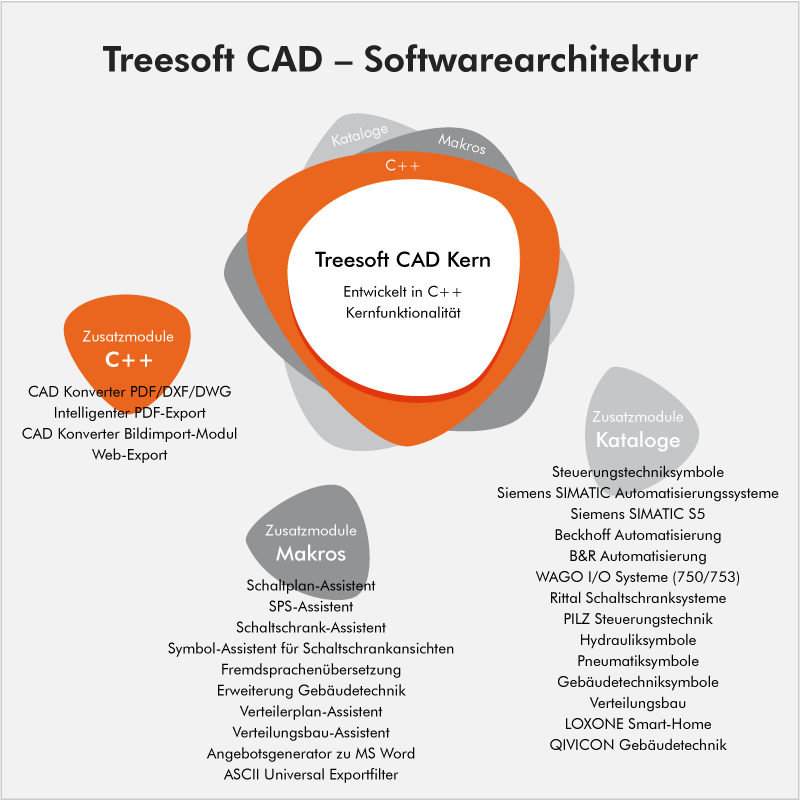
Treesoft CAD has a very long history of development and has been continuously enhanced with new features and adapted to the latest operating systems since 1986. The core of the CAD system could not keep pace with the speed at which these advancements were taking place. For this reason, it was time to completely overhaul it, both technologically and methodologically.

Revamping the CAD Core – 2
By utilizing state-of-the-art programming languages, tools, and development concepts, Treesoft CAD 7.0 laid the foundation for future development. In doing so, we focused heavily on the model of evolutionary architectures (by H. Krahn and B. Rumpe, *Fundamentals of the Evolution of Software Architectures*).
Thanks in large part to the numerous improvements made to the C++ programming language in recent years, we are now able to develop software more quickly and with significantly fewer errors. Modern development environments also help improve the structure of source code and implement all Treesoft definitions through features such as IntelliSense (wikipedia.org/wiki/IntelliSense). In addition, the ongoing automation of all processes allows us to deliver new versions to our customers even faster and more reliably.
A Mammoth Project – June 4, 2014
If the core functionality of a software program is overhauled, then logically all functions that access it must also be updated—which means virtually the entire source code.
The following charts show how much source code was revised, rewritten, or deleted:
A Mammoth Project – June 4, 2014 – 2
Revising such a large amount of source code takes a lot of time—in our case, almost exactly four years.
The following problems must be solved in such a mammoth project:
- The customer expects a continuous supply of updates, upgrades, and new add-on modules.
- To maintain the current level of quality or, if possible, to improve it significantly.
Development of the CAD Core #2
First, we began developing the CAD Core #2. It now consists of the following components:
Development of the CAD Core #2 – 2
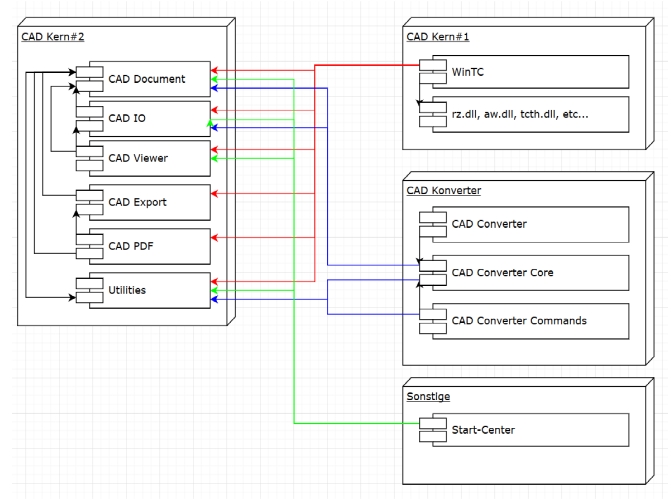
CAD Core #2 – DLLs
| CAD Document | Functions for managing all objects in a drawing file. |
| CAD IO | Input and output routines for reading and writing drawing and symbol files. |
| CAD Viewer | Functions for preparing the objects for graphical output, which is then handled by Qt functions. |
| CAD Export | Functions used to prepare the contents of a drawing file for export (printing, PDF export, HTML export). |
| CAD PDF | Features that extend CAD export capabilities to include output in PDF format. |
| Utilities | A program library containing a collection of program routines needed in various places. |
Upgrade 6.5, Build 4 – April 26, 2016
The functionality of CAD Kern#2 has been expanded and almost fully integrated into Treesoft CAD. In addition, we have developed the following add-on modules using the new technology in CAD Kern#2:
- Smart PDF Export
- CAD Converter Image Import Module
- What's New – Treesoft CAD 6.5
- What's New – Treesoft CRM 6.5
- What's New – Treesoft ERP 6.5
- What's New – Treesoft Office 6.5
The building services system was developed entirely in the Treesoft CAD macro programming language. For this reason, we first began by implementing the necessary adjustments to the building services system to ensure it works flawlessly with the new CAD Kern#2 technology. In CAD, we then compared the results of all building services engineering functions with one another.
Here, too, errors were discovered that had been present as early as version 6.4 or even earlier. This led to what is likely the most comprehensive upgrade to Treesoft CAD Building Services.
Updates for Treesoft Office 6.5
In total, we have since released 29 additional updates for Treesoft Office 6.5. This large number of updates is due to the fact that we did not release any upgrades for nearly two years.
Upgrade 6.4, Build 4 – June 15, 2015
In version 6.4, the Treesoft CAD Converter was completely redesigned based on the newly developed CAD Core #2, and the following new add-on modules were developed:
- CAD Converter: PDF/DXF/DWG
- What's New – Treesoft CAD 6.4
- What's New – Treesoft CRM 6.4
- What's New – Treesoft ERP 6.4
- What's New – Treesoft Office 6.4
In addition, we have implemented the 50 most frequently requested customer features for Treesoft CAD Control Technology.
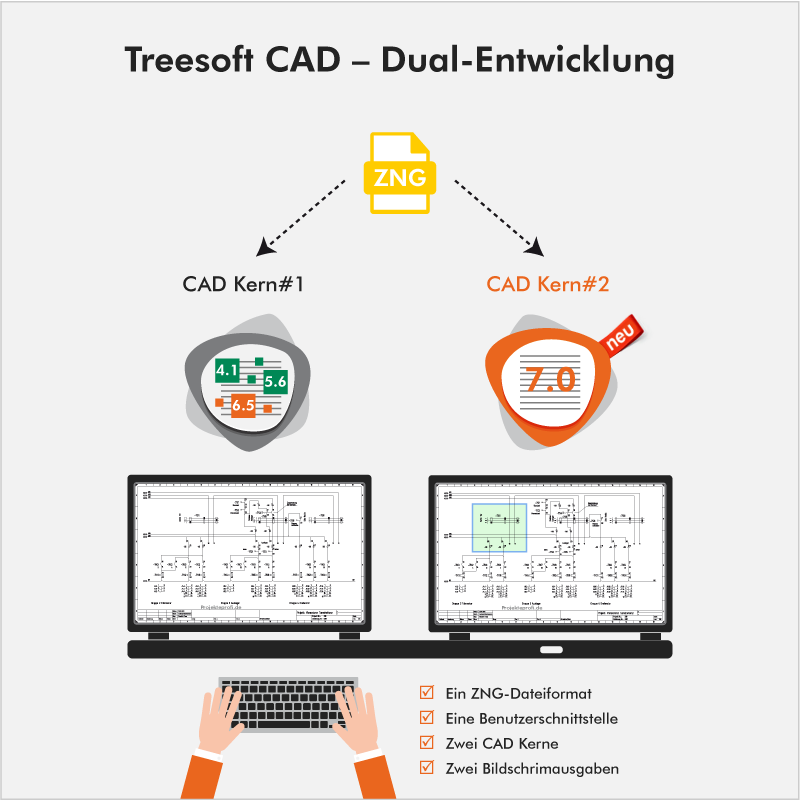
During this time, the foundation for Dual-CAD was also laid, and work began on implementing the first new features of CAD Core #2. In Dual-CAD, CAD Core #1+Core #2 was then compared with CAD Core #1 from Treesoft CAD 6.3.
In the process, errors were discovered that had been present as early as version 6.3 or even earlier. Naturally, these were corrected immediately.
Updates to Treesoft Office 6.4
In total, we then released 11 additional updates for Treesoft Office 6.4.
Quality Assurance
We were aware from the very beginning that revising the CAD core would require at least half a million (595,004) lines of source code to be revised, rewritten, or deleted. The challenge here was to develop a way to maintain the current level of quality—and, if possible, even improve it. We achieved this goal through three measures:
- The functionality included in the newly developed CAD Kern#2 has already been extensively tested in 4,035 Treesoft CAD add-on modules sold and in all Start-Centers released with upgrades 6.4 and 6.5. This ensures a high standard of quality.
- CAD Core #2 was developed in parallel with the existing CAD Core #1, and its functions were then adapted in parallel with the existing functions. In essence, we had developed a dual-CAD system. The output was displayed simultaneously on two monitors. This allowed developers to immediately verify the results of their inputs—such as drawing a line. The revision of the function was not considered error-free until both results were identical.
- In addition, a transaction-capable undo/redo system was implemented in the new CAD core. The redesign of the function was not considered fully complete until the undo and redo functions could be called as often as needed and always produced the correct result.
New Features
Transactional Undo and Redo Functions
Treesoft CAD Control Technology now includes a completely new, transaction-capable Undo and Redo function (Edit menu, Undo command Ctrl+Z and Redo command Ctrl+Y).
Each transaction consists of at least one step. Each individual step logs the function performed (insert, edit, or delete) on a single object.
For example, if we want to change the object type of a line, a transaction (see figure: Treesoft CAD 7.0 – Undo Stack: Change Object Type) is first created with a single step on the so-called undo stack. The step contains a copy of the line and additional information, such as the active layer. Only then is the line’s object type updated.
If we now press the Ctrl+Z shortcut, the active layer is first set to the layer specified in the step. Next, the line in the drawing is replaced with the copy saved in the step, and the entire transaction is moved from the Undo stack to the Redo stack.
The drawing now includes the line from before the object type was updated, and the redo stack includes the line from after the object type was updated.
Pressing the Ctrl+Y key combination swaps the line in the drawing back with the line in the current step and moves the transaction from the redo stack to the undo stack.
Since the new CAD core was programmed to be entirely object-oriented, all different objects can generally be treated the same way, with minor extensions for Autoconnect lines, for example; Thus, before and after the execution (Undo/Redo) of a transaction that contains objects relevant to Autoconnect, the Autoconnect process is performed both as a preparatory step and as a final step.
The area functions also work on the same principle, except that, as a rule, multiple objects are processed at the same time, and a corresponding number of steps are stored in a single transaction.
If you draw potential lines using the “Set Potential” toolbar, all steps are listed in a single transaction (see figure: Treesoft CAD 7.0 – Undo Stack Set Potential). The “Undo” command undoes the transaction and, with it, all the operations listed within it.


Significantly Improved Autoconnect Feature
Internally, Treesoft CAD 7.0 now always uses the highest available floating-point arithmetic. This ensures that the coordinates for the connection points are calculated with greater precision when squashing, stretching, or rotating symbols. The Autoconnect feature now also works with rotated and compressed/stretched symbols. In addition, the connecting lines are drawn as the command is being executed—for example, during a move operation. This allows the user to see the potential result immediately.

Support for any image format
Treesoft CAD can now read the image formats listed below.
The following formats are supported in all cases:
- JPEG, PNG, MNG, BMP, GIF, ICO, TIFF
Depending on the operating system installed and the plug-ins installed on it, the following formats are also supported:
- svgz (compressed SVG file)
- mng (Multiple-Image Network Graphics)
- pbm (Portable Graymap)
- pgm (Portable Bitmap)
- ppm (Portable Pixmap)
- tga (Targa Image File)
- xbm (X BitMap)
- xpm (X PixMap)
You can see which formats are supported in the “Open File” dialog.
When you place the graphic, Treesoft CAD automatically converts it to BMP format.
Learn more about the image import module

Significantly improved user guidance
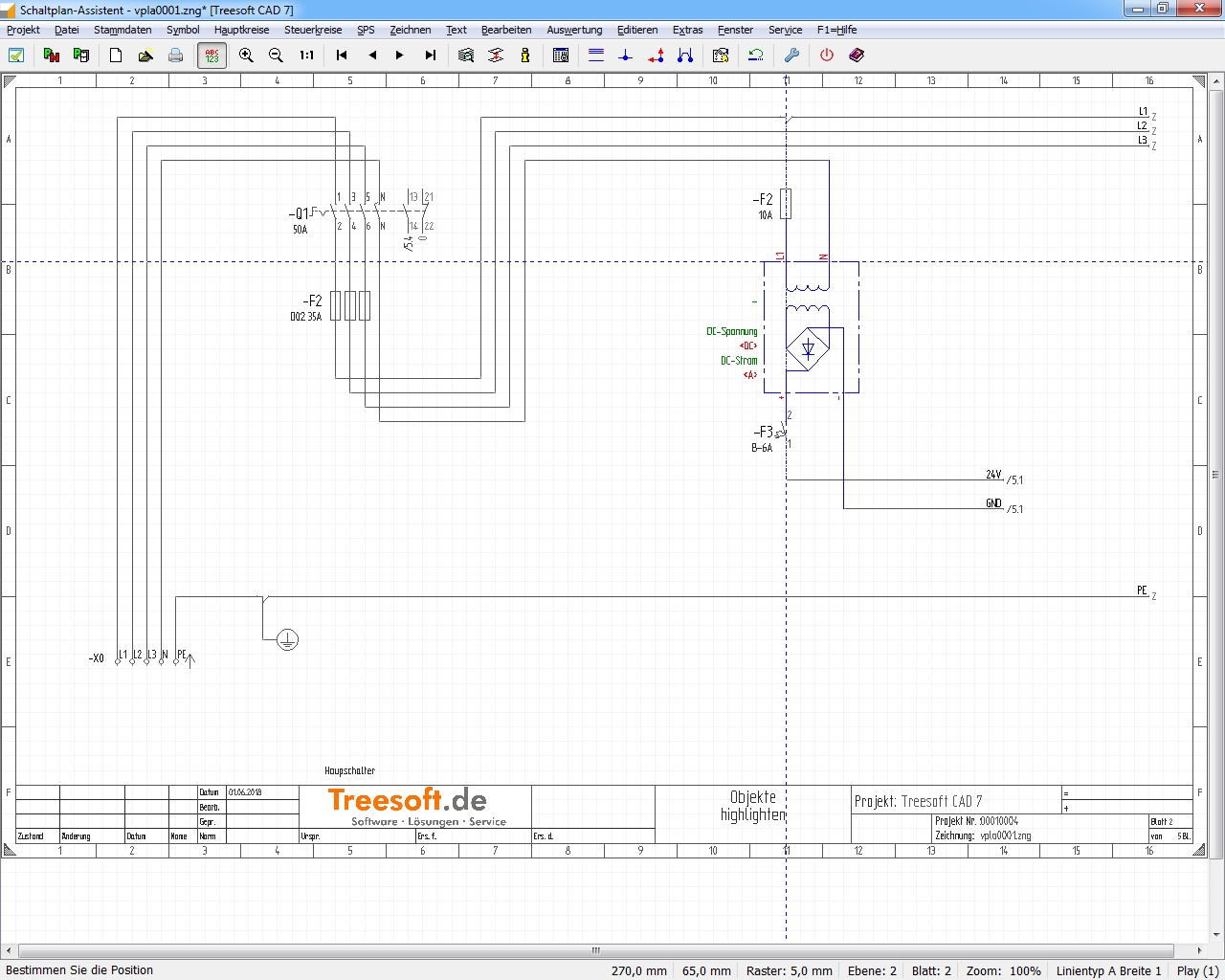
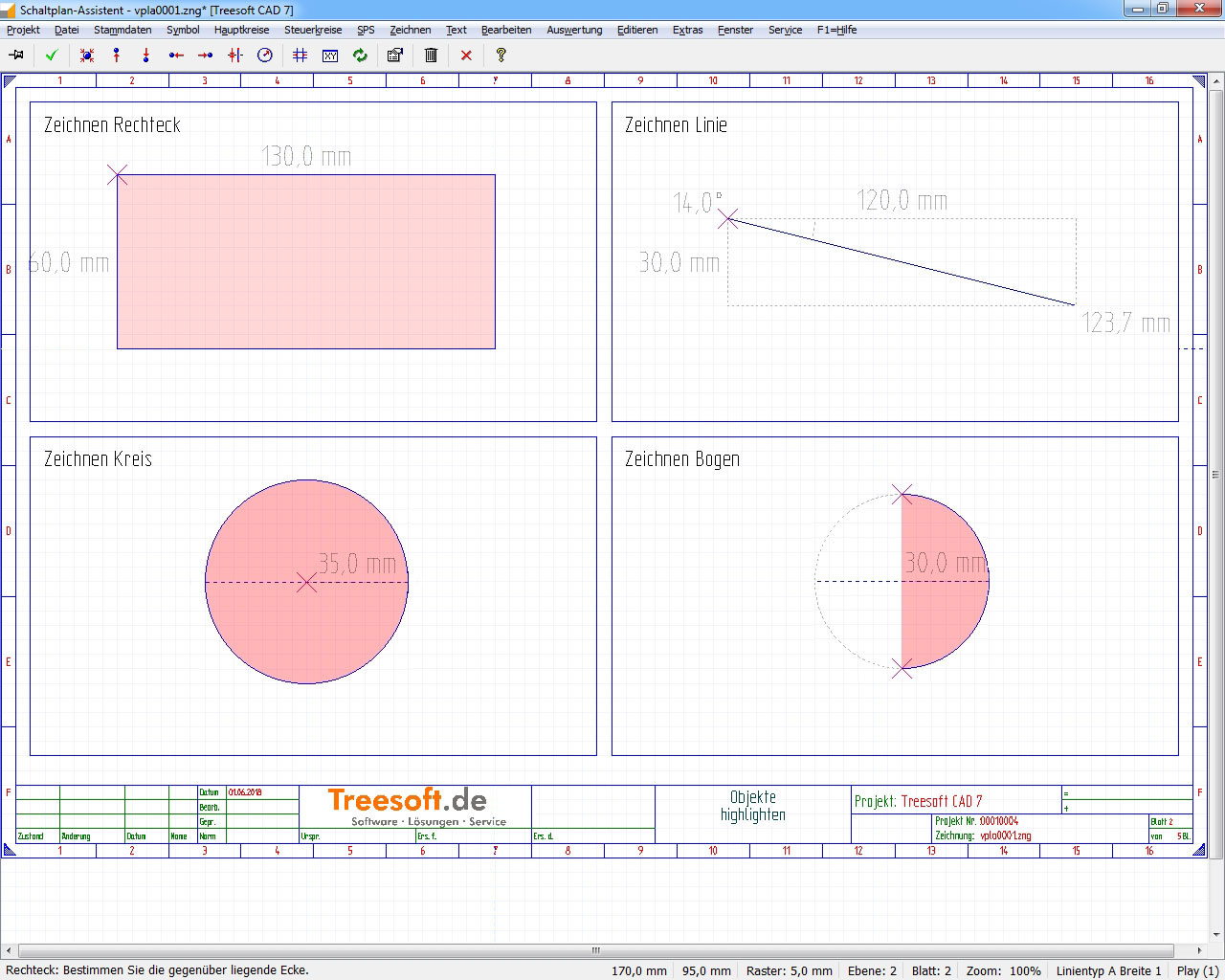
Objects are now highlighted based on context. The object on which an operation—such as moving or copying—is performed remains highlighted. All other objects are displayed in black. When drawing a rectangle, circle, or arc, they are displayed with a filled area.
Draw a Tangent Line
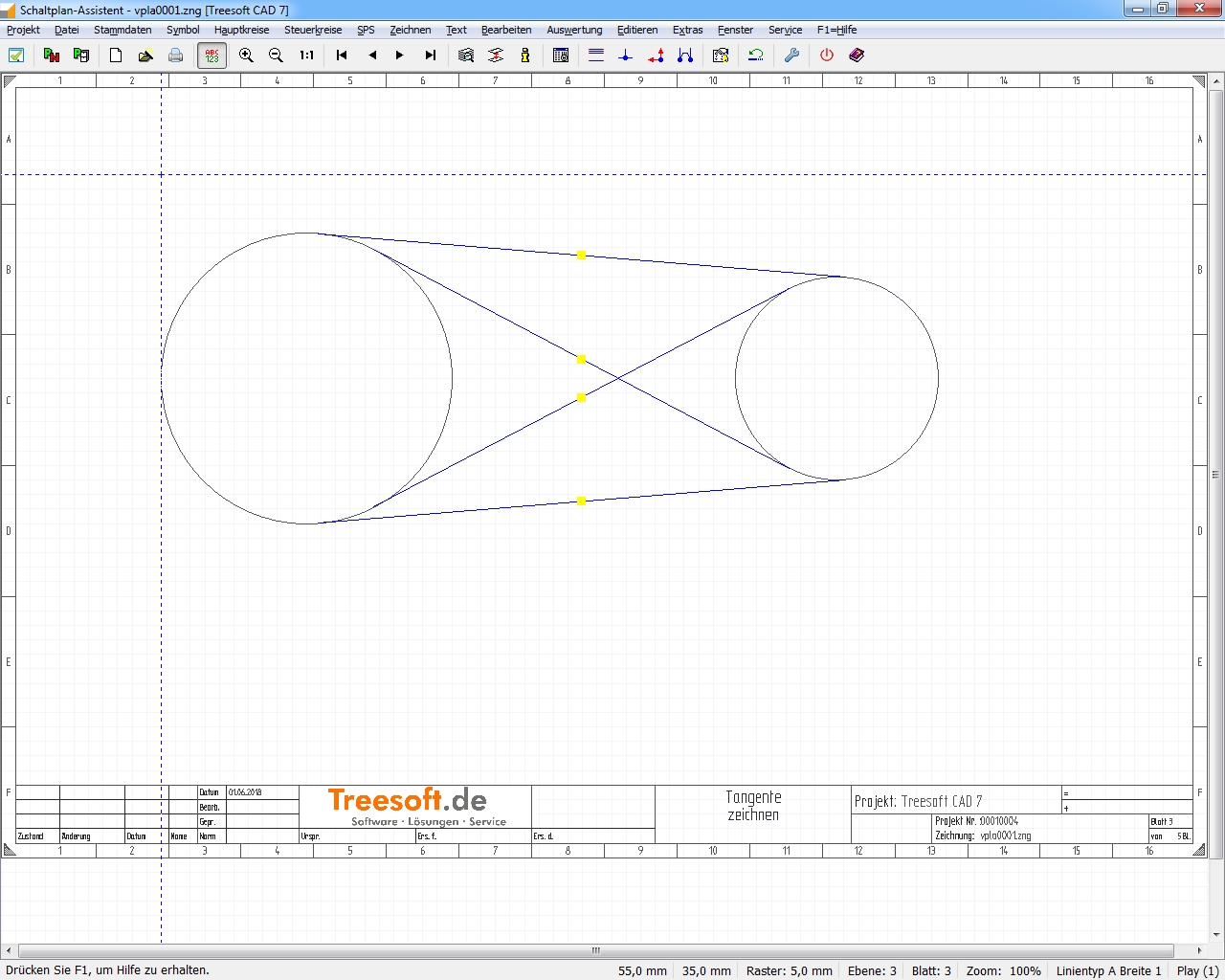
The function has been completely redesigned, and the user interface has been significantly improved. When the command is executed, a status message prompts the user to select a circle or arc. The user must then specify the endpoint or a second circle or arc. If the user specifies a second circle, Treesoft CAD draws all possible tangents. By clicking on one of the displayed markers, the user selects which tangent will actually be drawn.
While holding down the Ctrl key or the spacebar, the user can also select multiple keys.
Domain function
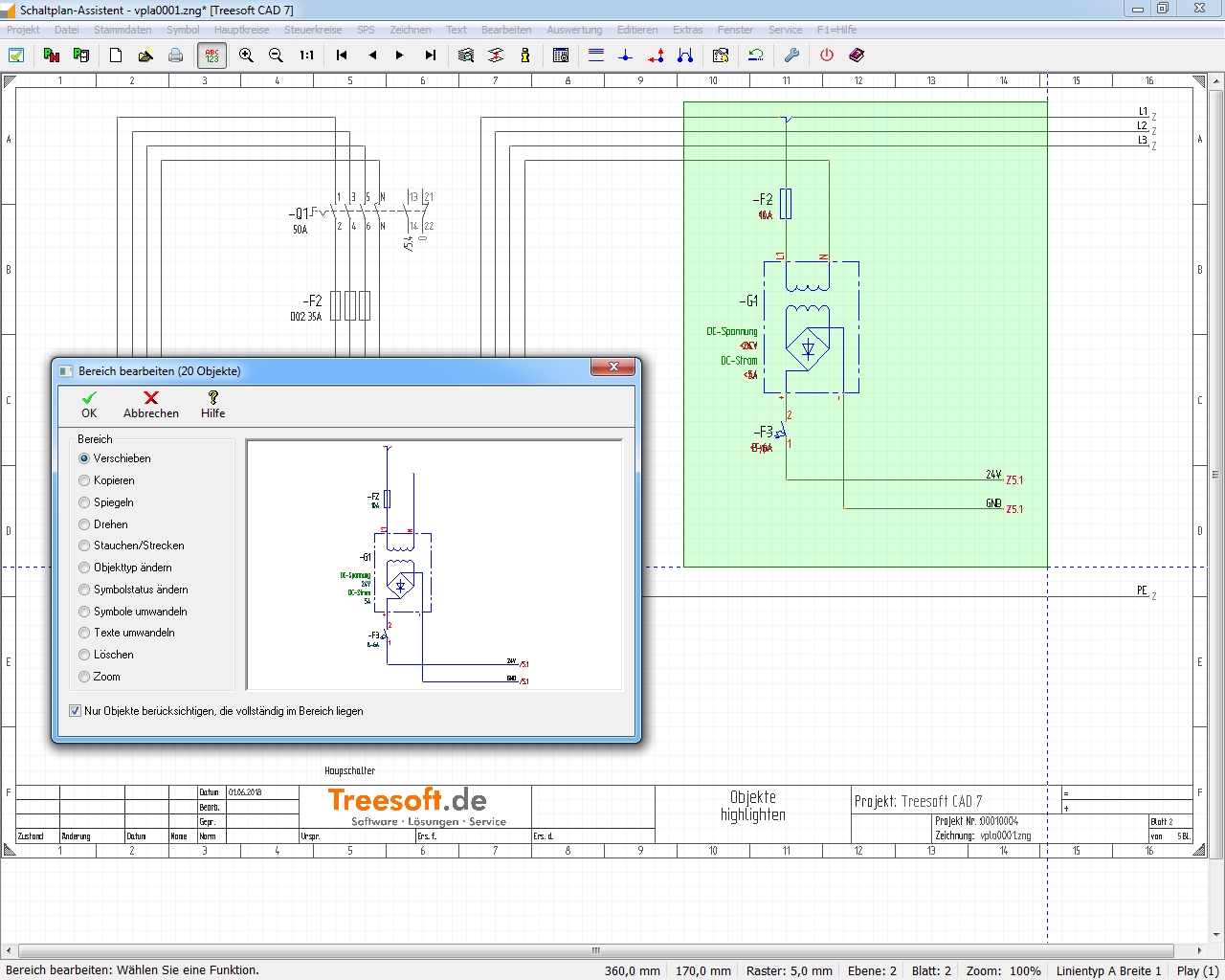
The area function now includes a preview. In addition, users can now change the setting “Consider only objects that lie entirely within the area” in the dialog box.
The range specified by the user is displayed in color (range function, BmK frame).
Automatic Wire Numbering
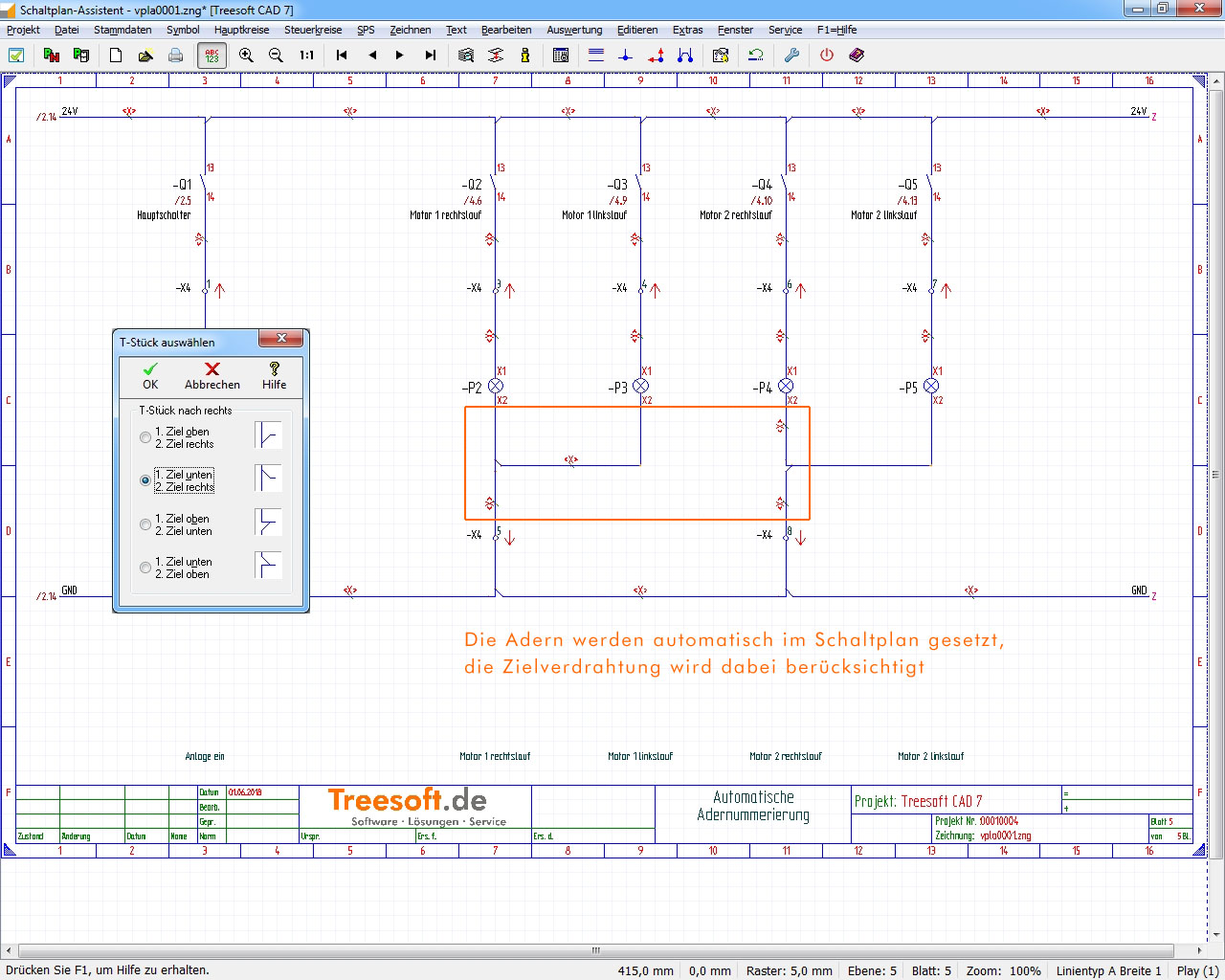
The wire symbols are now placed fully automatically. If the user changes the target wiring, the wire symbol is automatically repositioned.
Support for monitors with 4K resolution
The trend is toward monitors with ever-higher resolutions while maintaining the same size, resulting in many software controls being displayed very small. To counteract this while still benefiting from the higher resolution, Microsoft introduced screen scaling. This feature tells a program by what factor to scale the user interface elements to compensate for the high resolutions. Treesoft CRM and Treesoft ERP are still largely developed in Delphi. The version of Delphi we use does not offer the ability to scale user interface elements. The Delphi source code currently comprises 436,688 lines. We have been working for a long time on replacing the Delphi source code with C++ and Qt. However, this is a very complex and time-consuming process. Treesoft CAD and the Treesoft CAD Converter are written entirely in C++. We have already been able to implement the necessary modifications here. Customers who primarily work with Treesoft CAD now have the option to take advantage of the higher resolution. If you have any questions, our service representatives will be happy to assist you.
Screen output
In CAD Kern#2, the screen display was completely redesigned. The focus here was on ensuring the perfect display of Treesoft CAD drawings. As a result, display performance was improved—in some cases significantly. With the integration of CAD Kern#2 into Treesoft CAD 7.0, you can now benefit from these improvements as well:
“Reversing Contactor Circuit” Project – All Levels Activated:
| Version 6.5 | Version 7.0 | |
| 240 ms | 18 ms | 15.5 times faster |
“Yellow House” Project – First Floor Plan:
| Version 6.5 | Version 7.0 | |
| 100 ms | 15 ms | 6.66 times faster |
Questions?
We're happy to help!
+49 2266 4763-850
support@treesoft.de


